
Details rendered live
Name, company, and CRM fields appear in the frame when the viewer presses play.
Personalise and brand
Render viewer and account details into the video at play time, so one recording addresses every recipient individually.
What it does
Recording a version per prospect does not scale. Rendering the details at play time does.
Name, company, and CRM fields appear in the frame when the viewer presses play.
Update the recording once rather than re-recording every personalised variant.
Values come from the link, the embed, or the CRM record you already hold.
In practice
The details that prove this was meant for the person watching.
In depth
At Mindstamp, we believe there are two ingredients in making an outstanding interactive video experience: Engagement, and Personalization. By adding interactions like hotspots , buttons , and questions to your content, you’re boosting engagement. Personalization, though, is what makes each experience feel custom tailored and unique to the individual on the other side of the screen.
The Mindstamp interface allows you to efficiently capture viewer info in a number of non-intrusive ways. Pre-content viewer info capture, in-video questions, button clicks, and more, are all ways to gather information about your viewer. You can then take that information (or information you already know about the viewer!) and re-use it in-video later on. This could mean visually reaffirming a selected meeting date, addressing viewers by name, or adding CTA’s that have their preferences on them, to increase click-through!
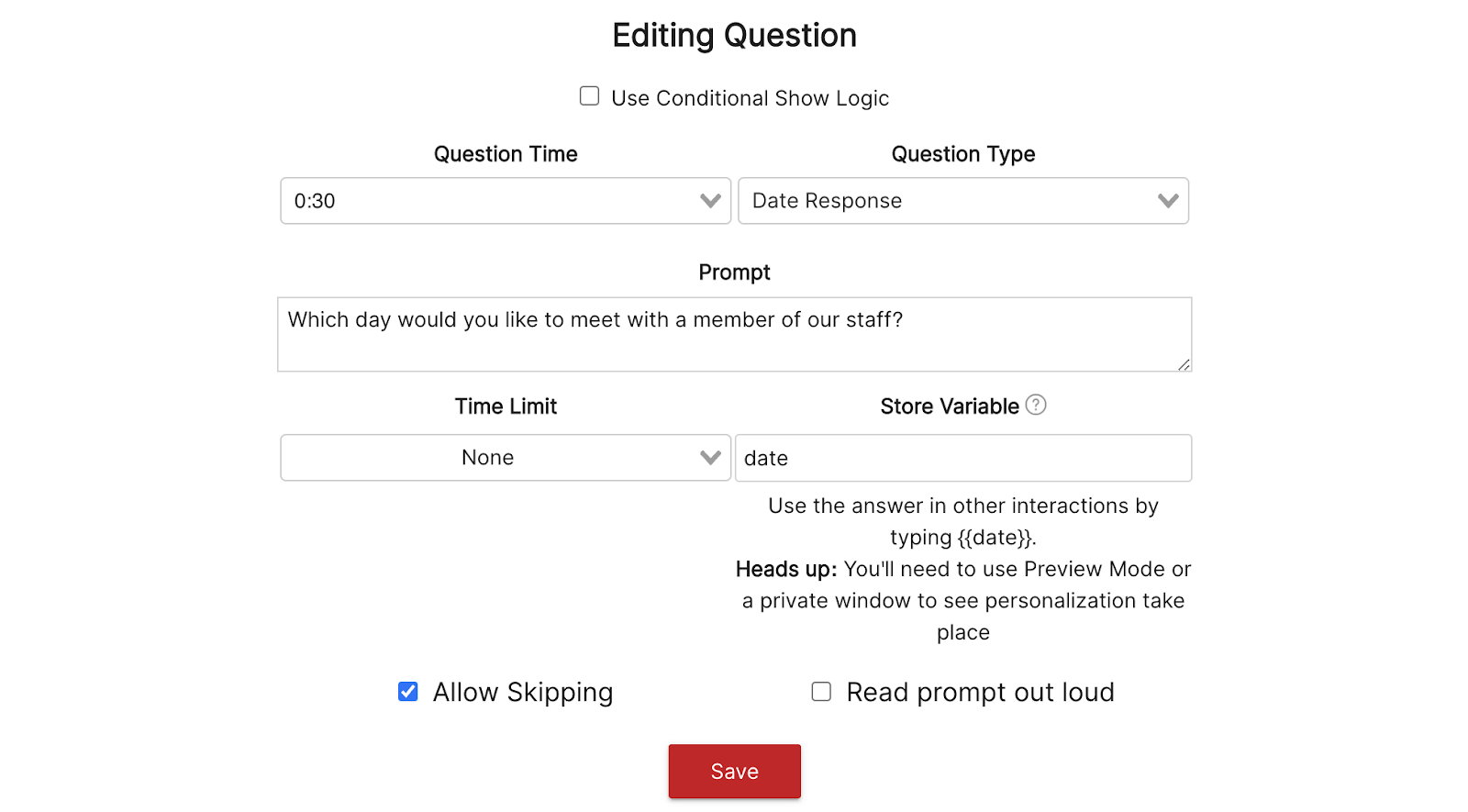
Setting up variables in Mindstamp is easy! Once you click on an interaction to add it to your video, you’ll see a “Store Variable” option in the configurator. This allows you to assign an internal “code” of sorts to viewers' answers. That code can then be placed anywhere that text exists throughout the video (comments, interactive text, buttons, etc.) and it will automatically replace the “code” with the viewer's answer choice. In the example below, we initiate a “Date Response” question in which we ask a client when they’d like to meet.
As you can see, we’ve chosen to store their answer as a Variable called “date.” So, whenever we use the Variable code {{date}} in this experience, it’s going to be dynamically replaced with whatever the user answers. We’re going to add a comment confirming the meeting date. Here’s what it would look like from the configurator:
Here’s what it would like to a viewer after they’ve answered the question and “set” the Variable:
As you can see, the {{date}} variable was automatically changed. This means that this single video can dynamically accommodate the specific needs of your entire viewer base - all with that personalized feel!
There are many scenarios where you would benefit from using variables in your interactive video. Check out a couple of examples to get you started!
So what if you want to use a piece of viewer information that you already have before they watch the video? With Mindstamp - you can! To pass in variables, simply make this small change at the end of your videos URL (colors used to show different elements):
What gets measured
Related
These combine on one timeline — most videos use three or four together.
Control colours, logo, and player styling so the interactive experience looks like your product, not a tool.
Explore →Generate a certificate when a viewer completes and passes, so evidence of training exists without anyone producing it.
Explore →Group viewers so access, reporting, and results are managed per team, cohort, or client rather than one at a time.
Explore →Open a Calendly or HubSpot calendar as an interaction, so the meeting is taken at the moment the buyer decides.
Explore →Ask for contact details before the video starts, at a chosen moment, or on a specific interaction — without sending anyone to a form page.
Explore →Send viewers to any timecode from a button, hotspot, or answer — forward to skip, back to review.
Explore →Questions
From the link, the embed parameters, or the CRM record — whichever your sending workflow already uses.
Set a fallback so the video still reads properly when a field is blank.
Try it on one video
Send the same video to ten accounts and let each one see its own name.