
Placed on the moment
The link appears where the video earns it, not in a caption underneath.
Capture and convert
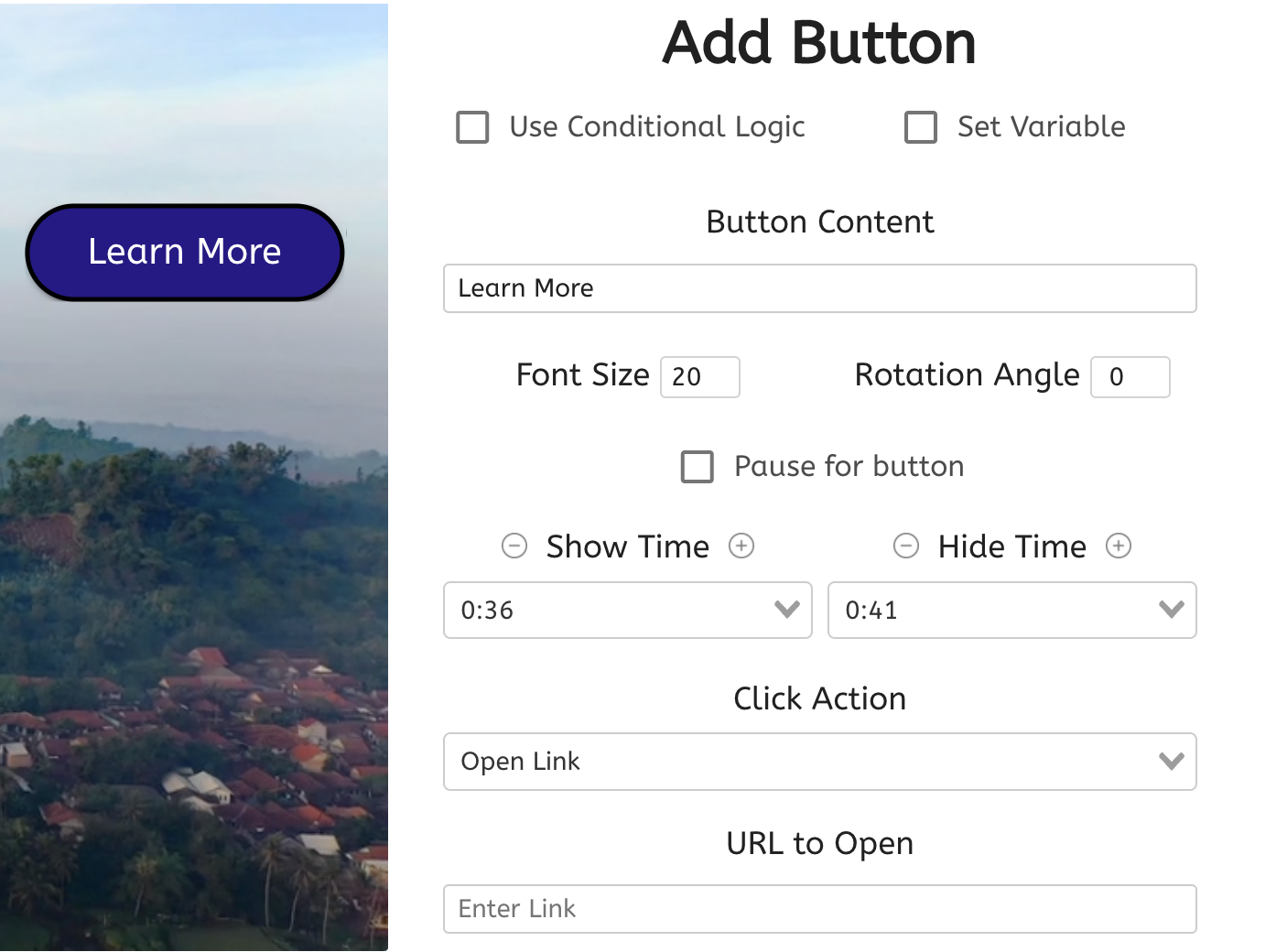
Open any URL from a button or hotspot in the video — in a new tab, the same tab, or an overlay — without ending playback.
What it does
A link at the right second converts better than the same link in a description nobody scrolls to.
The link appears where the video earns it, not in a caption underneath.
Open in an overlay or a new tab so the viewer does not lose their place.
Click-through is attributed to the interaction and the timecode it sat on.
In practice
The next step the viewer has just been given a reason to take.
In depth
Create direct access to product checkout, additional information, company landing pages, and much, much more.
Among all of the powerful click-actions that can take place when a viewer clicks on an interaction, perhaps the most powerful is the “Open Link” action. You can set up buttons, hotspots, specific question answers, interactive text, and more to open up prespecified links of your choice as soon as they’re clicked or tapped on.
This sort of in-the-moment, engaging call to action is what you need to get the most out of your sales, marketing, training, or educational videos. Continue reading to see some powerful use-case examples.
Interactive video is one of the biggest catalysts for growth that the e-commerce world has ever seen. With platforms like QVC and the Home Shopping Network, we know that there’s value in customers having a purchase option during a presentation.
By using the “Open Link” action, you can provide customers immediate access to products while they’re watching related content - instead of after the fact. Providing this seamless connection at the time they’re most interested may be the difference between a lead and a sale. Take the window out of window shopping today!
There are more than a few use-cases in which your users could benefit from a “Learn More” call-to-action while watching your video. Maybe you’re using interactive video for internal communications, and you want a “Learn More” button to open up a link to sign up for the next conference. Or, you could add a hotspot labeled “More information” in the corner of your promotional content.
When a viewer clicks on it, they’ll be taken to a website with additional information on the product or sweepstakes. We’ve even seen charities and nonprofits add a “Donate Now” button so that viewers can pitch in at the precise moment they feel compelled within the video content.
Set up lead prequalification videos where you ask clients important information about their buying power or preferences. Once you’ve got your answer choices set up, let each choice open a different link! Prequalified customers may open a link to schedule an appointment, while lesser qualified customers may open a link for general information.
What gets measured
Related
These combine on one timeline — most videos use three or four together.
Open a Calendly or HubSpot calendar as an interaction, so the meeting is taken at the moment the buyer decides.
Explore →Ask for contact details before the video starts, at a chosen moment, or on a specific interaction — without sending anyone to a form page.
Explore →Let a viewer start an email to your team from inside the video, with the subject and recipient already set.
Explore →Add a tap-to-call action so a viewer on a phone can reach your team without copying a number.
Explore →Put a payment step in front of a video, or partway through it, and sell access without building a platform.
Explore →Control colours, logo, and player styling so the interactive experience looks like your product, not a tool.
Explore →Questions
That is configurable — open in a new tab and playback continues, or pause deliberately to hold attention on the link.
Yes. Clicks are reported per interaction, so you compare placements rather than guessing.
Try it on one video
Move one call to action out of the description and into the frame.